

Managing Workflows
As you create more workflows, organization becomes important. Here’s how to manage them effectively.
Dashboard Organization
Section titled “Dashboard Organization”View All Workflows
Section titled “View All Workflows”Your dashboard shows all workflows at a glance:
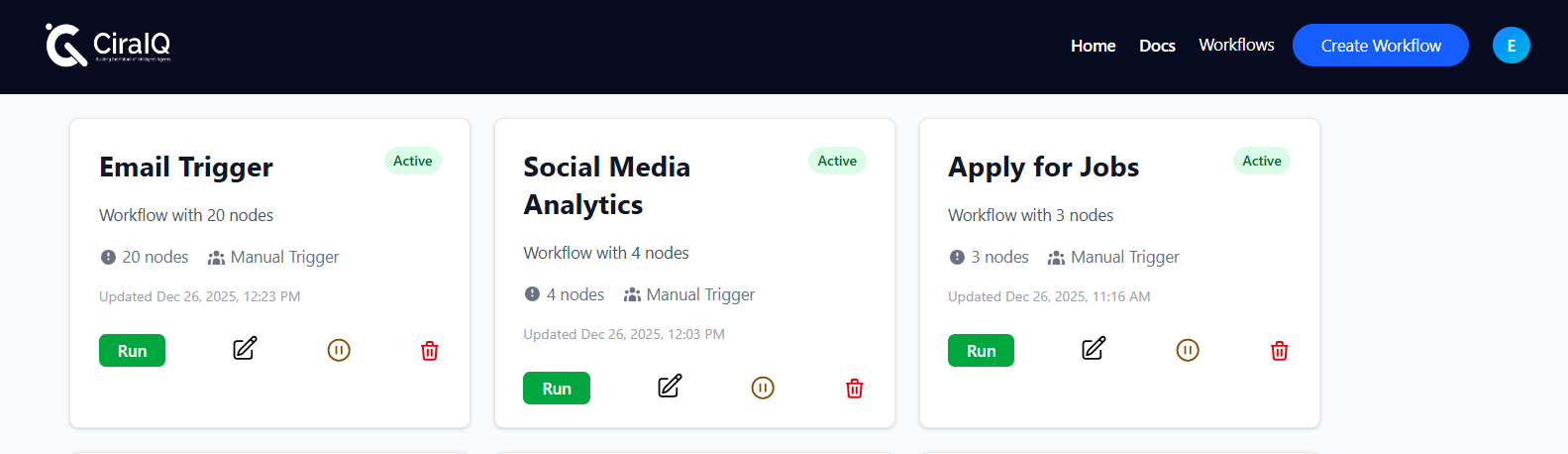 Workflows Dashboard - Show grid/list of workflows
Workflow Status
Section titled “Workflow Status”Each workflow has a status:
- 🟢 Active - Running automatically
- ⚪ Inactive - Paused, won’t run
- 🔴 Error - Has configuration issues
- 🟡 Draft - Not yet completed
Naming Workflows
Section titled “Naming Workflows”Good names make workflows easy to find:
- "New Contact Form → Email & Slack" - "Daily Sales Report to Team" - "High Priority Support → Urgent Slack Alert"
- "Workflow 1" - "Test" - "My Automation"
Organizing Workflows
Section titled “Organizing Workflows”Use Categories
Section titled “Use Categories”Group related workflows:
-
Customer Communications
- Welcome emails
- Follow-ups
- Surveys
-
Team Notifications
- Daily standups
- Urgent alerts
- Weekly summaries
-
Data Processing
- Form submissions
- Report generation
- Data cleanup
Add Descriptions
Section titled “Add Descriptions”Always add a description explaining:
- What the workflow does
- When it runs
- Who it affects
Example:
Name: Customer Welcome SeriesDescription: Sends 3 emails over 7 days to new customers.Runs when: New row added to "Customers" sheetActivating/Deactivating
Section titled “Activating/Deactivating”When to Activate
Section titled “When to Activate”Activate when:
- ✓ Workflow is tested and working
- ✓ All configurations are correct
- ✓ You want it to run automatically
When to Deactivate
Section titled “When to Deactivate”Deactivate when:
- Temporarily not needed
- Making updates
- Troubleshooting issues
- On vacation (for manual processes)
Toggle Switch
Click the active/inactive toggle on workflow card
Confirm
Confirm you want to change status
Monitor
Watch first few executions after activating
Monitoring Workflows
Section titled “Monitoring Workflows”Check Execution History
Section titled “Check Execution History”Regular monitoring helps catch issues early:
- Click on any Settings
- View “Reports & Insights”
- Check success/failure rate
- Review recent executions
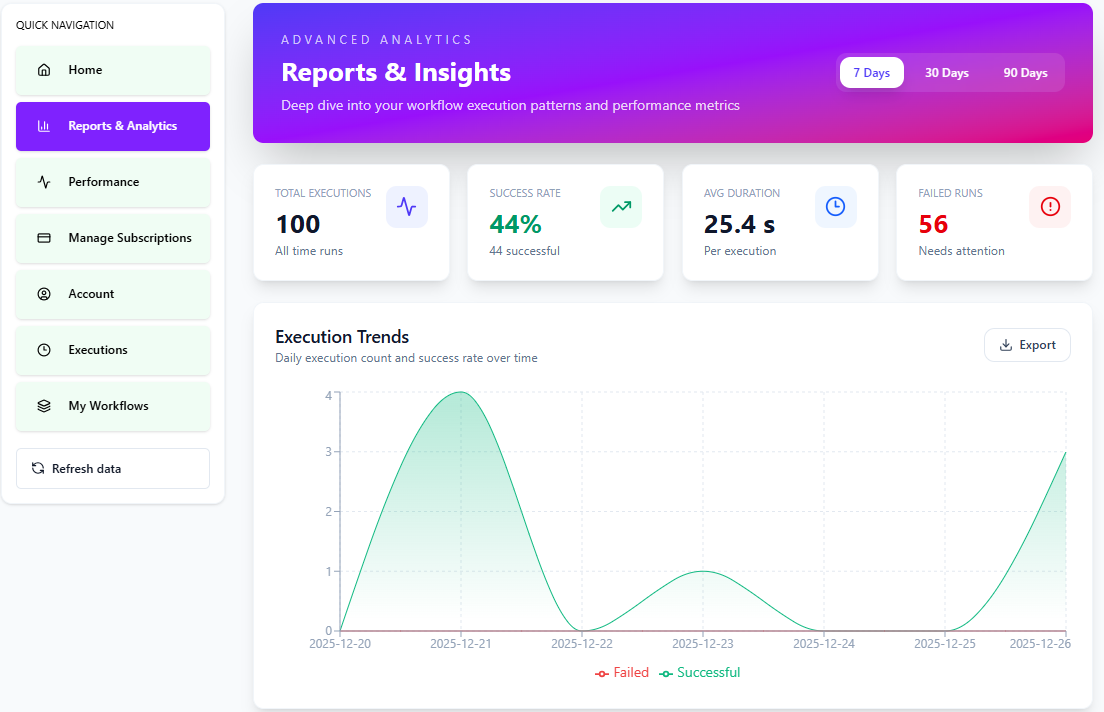 Execution History - Show log of past runs
Key Metrics
Section titled “Key Metrics”Watch these metrics:
- Success Rate - % of successful executions
- Avg. Execution Time - How long workflows take
- Last Run - When it last executed
- Error Count - Number of failures
- Success rate > 95% - Consistent execution times - Runs on expected schedule - No recent errors
Updating Workflows
Section titled “Updating Workflows”Making Changes
Section titled “Making Changes”1. Deactivate the workflow 2. Make your changes 3. Test thoroughly 4. Reactivate when confirmed working
Version Control
Section titled “Version Control”Keep track of changes:
- Note what you changed
- Test before activating
- Monitor after updates
- Revert if issues arise
Duplicating Workflows
Section titled “Duplicating Workflows”Create copies for variations:
Find "Duplicate" Button
Click ⋯ menu on workflow card
Select Duplicate
Choose "Duplicate" from menu
Rename Copy
Give it a new, descriptive name
Modify as Needed
Change configurations for new use case
Use Cases:
- Testing changes without affecting original
- Creating similar workflows for different teams
- A/B testing different approaches
Deleting Workflows
Section titled “Deleting Workflows”Before Deleting
Section titled “Before Deleting”Check:
- Is it currently active?
- Do other workflows depend on it?
- Do you have a backup?
- Is execution history needed?
How to Delete
Section titled “How to Delete”- Deactivate workflow first
- Click ⋯ menu
- Select “Delete”
- Confirm deletion
Maintenance Schedule
Section titled “Maintenance Schedule”Regular maintenance keeps workflows healthy:
Weekly
Section titled “Weekly”- Check execution success rates
- Review any errors
- Verify workflows still needed
Monthly
Section titled “Monthly”- Clean up inactive workflows
- Update outdated configurations
- Optimize slow workflows
- Archive completed workflows
Quarterly
Section titled “Quarterly”- Review all active workflows
- Consolidate similar workflows
- Update documentation
- Train new team members
Performance Optimization
Section titled “Performance Optimization”Speed Up Workflows
Section titled “Speed Up Workflows”- Remove unnecessary nodes
- Combine similar actions
- Use parallel execution when possible
- Optimize API calls
Reduce Errors
Section titled “Reduce Errors”- Validate data early in workflow
- Add error handling
- Use clear variable names
- Test edge cases
- [ ] Remove duplicate actions - [ ] Simplify complex conditions - [ ] Use efficient node ordering - [ ] Cache frequently used data - [ ] Monitor resource usage
Troubleshooting
Section titled “Troubleshooting”Workflow Not Running
Section titled “Workflow Not Running”Check:
- Is it activated?
- Is trigger configured correctly?
- Are there any errors shown?
- Has trigger condition been met?
Inconsistent Results
Section titled “Inconsistent Results”Check:
- Variable data availability
- Conditional logic
- External service status
- Rate limits
Next Steps
Section titled “Next Steps”- Best Practices - Design principles
- Performance - Optimization tips
- Examples - Well-managed workflows