

Schedule Trigger
The Schedule Trigger runs your workflow automatically at specific times - daily, weekly, monthly, or custom intervals.
When to Use
Section titled “When to Use”Perfect for:
- Daily reports sent every morning
- Weekly reminders for team meetings
- Monthly summaries at end of month
- Hourly checks of system status
How It Works
Section titled “How It Works”Set a schedule, and CiraIQ will run your workflow automatically at those times.
Clock Reaches Time
9:00 AM every Monday
↓
Workflow Runs
Sends team reminder
Configuration
Section titled “Configuration”1
Add Schedule Trigger
Drag it onto your canvas
2
Set Time
Choose when it should run
3
Activate Workflow
Turn it on to start automatic runs
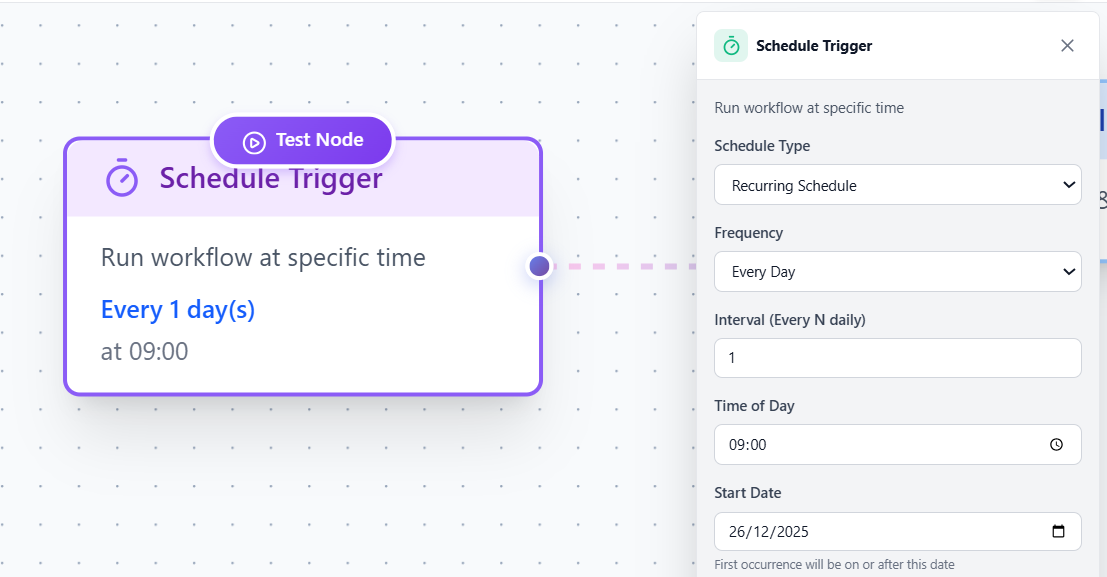 Schedule Configuration - Show time picker interface
Common Schedules
Section titled “Common Schedules”Daily at Specific Time
Section titled “Daily at Specific Time”Every day at 9:00 AMUse for: Daily standup reminders, morning reports
Weekly
Section titled “Weekly”Every Monday at 9:00 AMUse for: Weekly team updates, Monday motivation
Monthly
Section titled “Monthly”First day of month at 8:00 AMUse for: Monthly reports, billing reminders
Every Few Hours
Section titled “Every Few Hours”Every 4 hoursUse for: Regular system checks, frequent updates
Example Workflows
Section titled “Example Workflows”Daily Team Standup Reminder:
[Schedule: 9 AM Daily] → [Slack: "Standup in 15 minutes!"]Weekly Sales Report:
[Schedule: Monday 9 AM] → [Fetch Data] → [Email Report]
💡 Timezone Tip: Make sure the timezone setting matches your location!
Best Practices
Section titled “Best Practices”- Start with longer intervals (daily vs hourly)
- Test with Manual Trigger first
- Monitor first few automatic runs
- Adjust timing based on team feedback
Next Steps
Section titled “Next Steps”- Webhook Trigger - Event-based automation
- Scheduled Reports Example - See it in action
- Managing Workflows - Monitor scheduled workflows