

Dashboard Overview
The CiraIQ dashboard is your control center for managing all your workflows. Let’s take a tour!
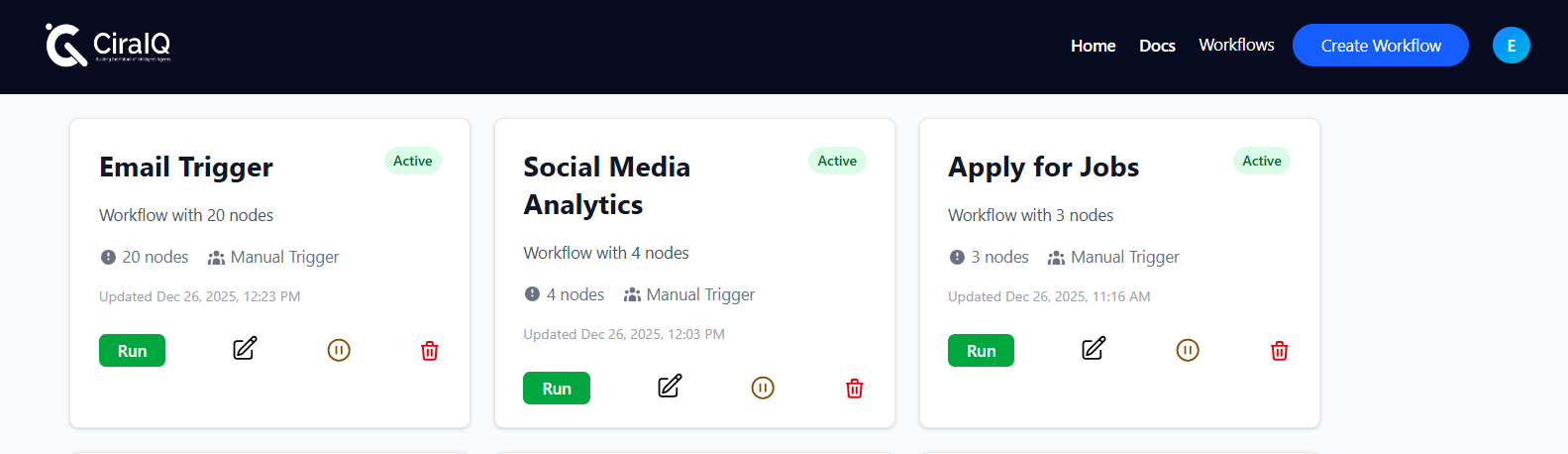 Full Dashboard - Annotated overview of the entire dashboard
Main Sections
Section titled “Main Sections”1. Workflows List
Section titled “1. Workflows List”This is where you’ll see all your workflows at a glance.
What You’ll See:
- Workflow names
- Status (Active/Inactive)
- Last run time
- Success/failure indicators
2. Top Navigation Bar
Section titled “2. Top Navigation Bar”The navigation bar gives you quick access to:
- Dashboard - Your home view
- Workflows - All your workflows
- Executions - View workflow run history
- Settings - Configure your account
💡 Quick Tip: Use the search box to quickly find any workflow by name.
3. Action Buttons
Section titled “3. Action Buttons”Key actions you can take:
- New Workflow - Create a fresh workflow
- Templates - Start from pre-built examples
- Import - Upload workflow from file
Workflow Cards
Section titled “Workflow Cards”Each workflow is displayed as a card showing:
- Name & Description - What the workflow does
- Status Toggle - Turn it on/off
- Last Run - When it last executed
- Actions Menu - Edit, delete, duplicate
Quick Actions
Section titled “Quick Actions”Activate/Deactivate Workflows
Section titled “Activate/Deactivate Workflows”Toggle the switch on any workflow card to:
- Active (Green) - Workflow will run automatically
- Inactive (Gray) - Workflow is paused
View Execution History
Section titled “View Execution History”Click on the settings to manage workflows and activities: https://ciraiq.com/settings
- Past executions
- Success/failure status
- Execution details and logs
Statistics & Insights
Section titled “Statistics & Insights”The dashboard shows helpful metrics:
- Total Workflows - How many you’ve created
- Active Workflows - Currently running
- Recent Executions - Last 24 hours activity
- Success Rate - Percentage of successful runs
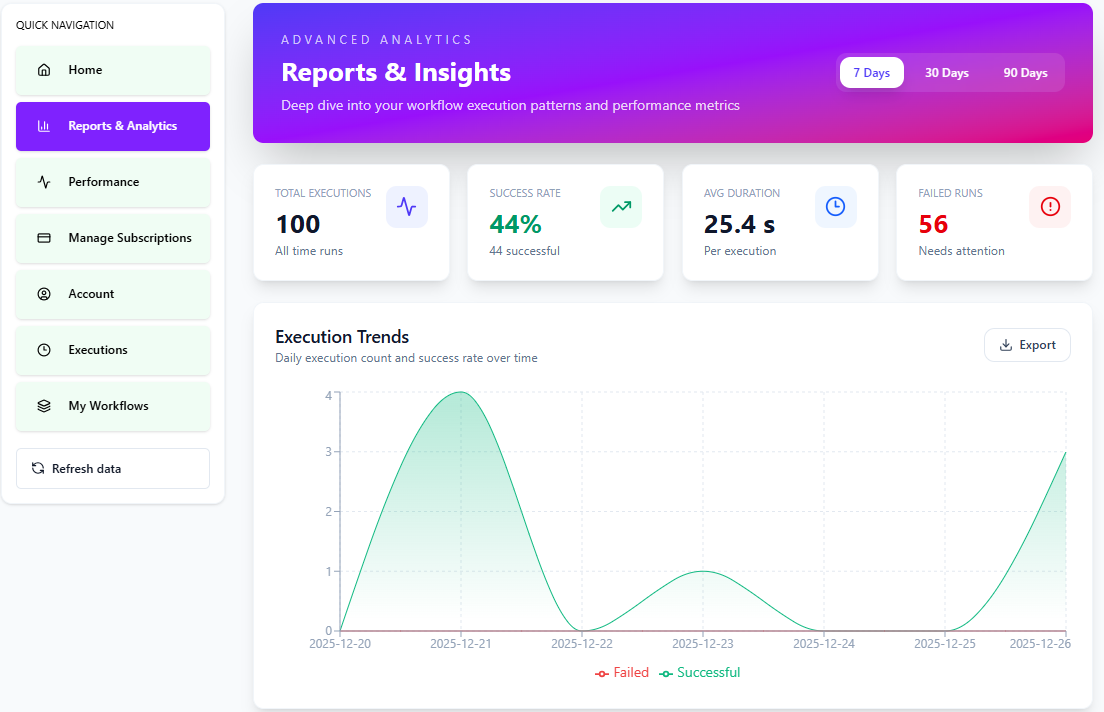 Dashboard Stats - Show statistics cards/widgets
Filtering & Sorting
Section titled “Filtering & Sorting”Find workflows quickly using filters:
- Status: Active, Inactive, All
- Type: By trigger type
- Sort: Name, Date created, Last run
🎯 Pro Tip: Use folders or tags to organize workflows by project or department.
Next Steps
Section titled “Next Steps”Now that you know your way around:
- Create Your First Workflow - Build something!
- Workflow Builder - Learn the visual editor
- Managing Workflows - Tips for organization